
Images
Size images, add captions, swap light/dark variants, and pick a supported format for crisp, accessible documentation visuals.
Jamdesk renders images with rounded corners and consistent spacing. Drop files into your /images directory and reference them with standard markdown.
Standard Markdown
Use the  syntax:
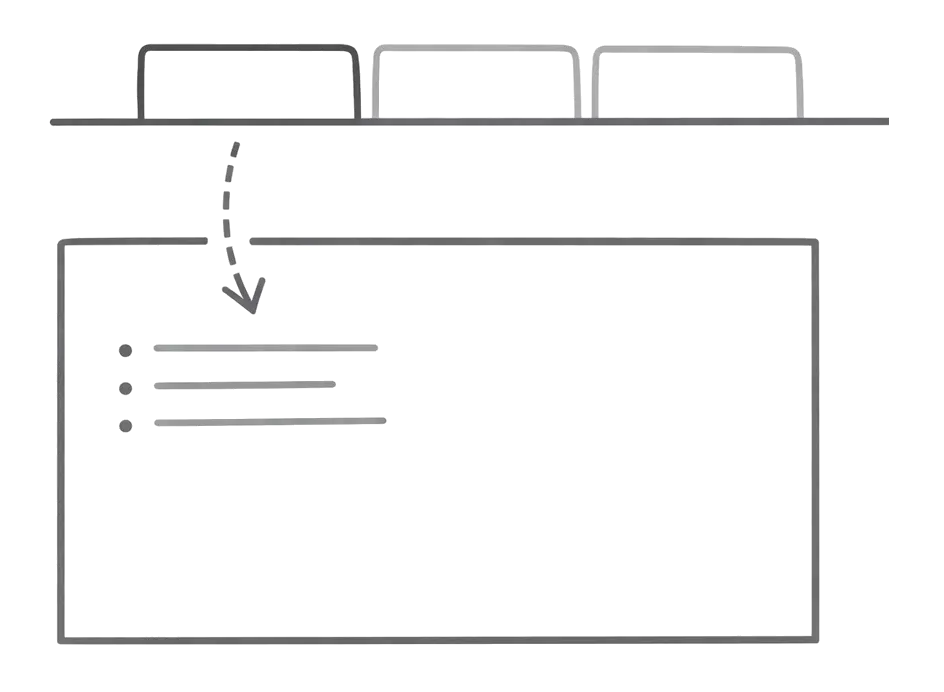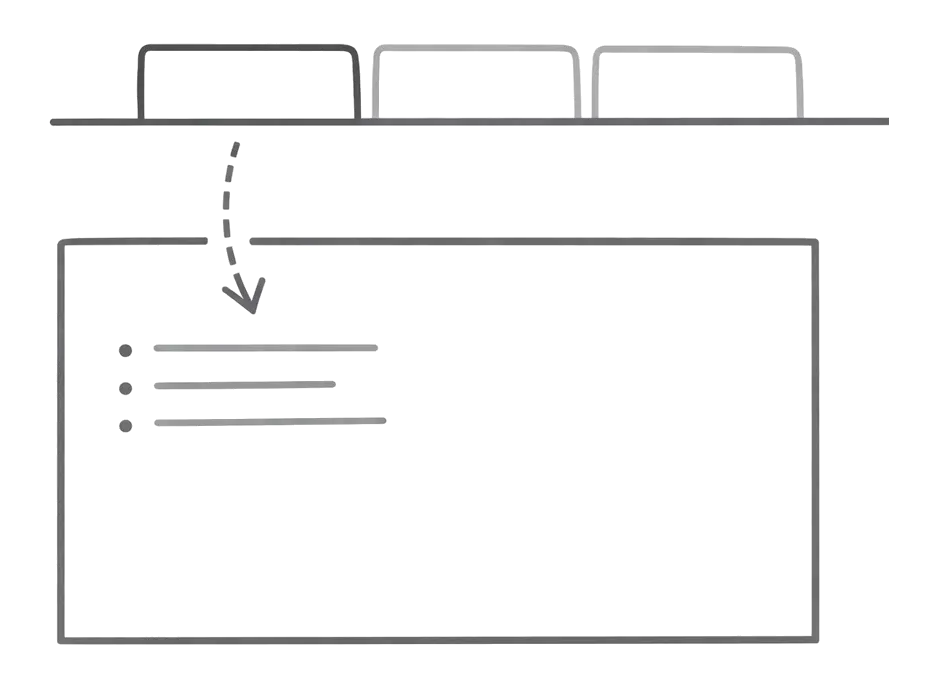
Paths start from your project root. An image at your-docs/images/screenshot.webp is referenced as /images/screenshot.webp.
Image Dimensions
Append =WIDTHxHEIGHT after the image URL (separated by a space) to control sizing:
Set only one dimension and the other scales proportionally:

Use it to keep a column of screenshots at one width, or to shrink a high-resolution image for display.
Captions
Wrap an image in the <Frame> component to add a border and a caption below it:
<Frame caption="Dashboard overview showing project statistics">

</Frame>
Frame works with any content inside it, not only images.
Click to Zoom
Click an image to open it full screen on screens 768px wide or larger. Close the zoomed image with Escape or a click anywhere.
Add noZoom to an <img loading="lazy"> tag to keep it from zooming:
<img src="/_jd/images/diagram.png?v=mwdojjfh" alt="Architecture diagram" data-no-zoom="true" />Markdown images () have no attribute syntax. They can't opt out of zoom. Use an <img loading="lazy"> tag when you need noZoom.
Light/Dark Mode
Docs sites often need different image variants for each color scheme: a logo on a white background looks wrong in dark mode.
The srcDark attribute
Jamdesk swaps the image source to match the active theme:
<img
  src="/_jd/images/logo-light.webp?v=mwdojjfh"
  srcDark="/images/logo-dark.webp"
  alt="Company logo"
/>
The browser loads only the image that matches the current color scheme.
The HTML <picture> element
Use <picture> with a media query for standard HTML that also works outside Jamdesk:
<picture>
  <source srcset="/images/logo-dark.webp" media="(prefers-color-scheme: dark)" />
  <img src="/_jd/images/logo-light.webp?v=mwdojjfh" alt="Company logo" />
</picture>
The <picture> approach respects the operating system's color scheme setting. The srcDark attribute follows Jamdesk's theme toggle instead. That is usually what you want for docs.
Supported Formats
| Format | Best for | Notes |
|---|---|---|
| PNG | Screenshots, UI captures | Lossless quality, supports transparency. Larger files. |
| JPEG | Photographs | Good compression, no transparency support. |
| SVG | Icons, diagrams, logos | Vector format that scales to any size with zero quality loss. Tiny file size. |
| GIF | Simple animations | Can get large fast. Consider short .mp4 loops for anything over a few frames. |
| WebP | General purpose | Smaller than PNG and JPEG at comparable quality. Works in all modern browsers. |
WebP gives the best size-to-quality ratio for most documentation images. It also supports transparency. You don't need PNG for that.
Best Practices
Screen readers read alt text aloud. It also shows as a placeholder when the image fails to load. Describe what the image shows.
{/* Good -- says what's in the image */}

{/* Bad -- tells you nothing */}
For decorative images that don't add information (background patterns, dividers), use empty alt text: .
Heavy images slow page loads, especially on mobile connections. Target sizes:
- Screenshots/UI: PNG or WebP, under 500KB
- Photos: JPEG or WebP, under 200KB
- Icons and diagrams: SVG whenever possible
Squoosh and TinyPNG compress images without visible quality loss. Run screenshots through one of these before committing.
Jamdesk can also compress at build time. Enable automatic WebP conversion in your docs.json. With it on, Jamdesk optimizes every PNG or JPG you commit on each build.
Screenshots that jump between different widths look messy. Pick a standard capture width (1200px works well) and use it across your docs. Jamdesk scales images to fit the content area. Consistent source dimensions produce consistent rendered results.
Jamdesk generates a branded 1200×630 social card for every page. Override it per page with og:image in frontmatter. After a build, run the page URL through the free OpenGraph Preview tool to see how the card renders on X, Facebook, LinkedIn, Slack, Discord, and more. See SEO Optimization for the full setup.
File Organization
Group images into subdirectories that mirror your content structure:
your-docs/
├── images/
│   ├── getting-started/
│   │   ├── step-1.png
│   │   └── step-2.png
│   ├── api/
│   │   └── response.png
│   └── logo.svg
└── docs.json
Reference them with the full path from your project root:
Avoid spaces in image filenames. Use hyphens instead: api-response.webp, not api response.webp.