
Installing the GitHub App
Troubleshooting common issues when connecting your GitHub repository to Jamdesk
If you're having trouble connecting your GitHub repository, this guide covers the most common issues.
Already have Jamdesk installed?
If you've previously installed the Jamdesk GitHub App on your account, clicking "Install GitHub App" will take you to GitHub's settings page instead of the installation page.
This is normal! Here's how to complete the setup:
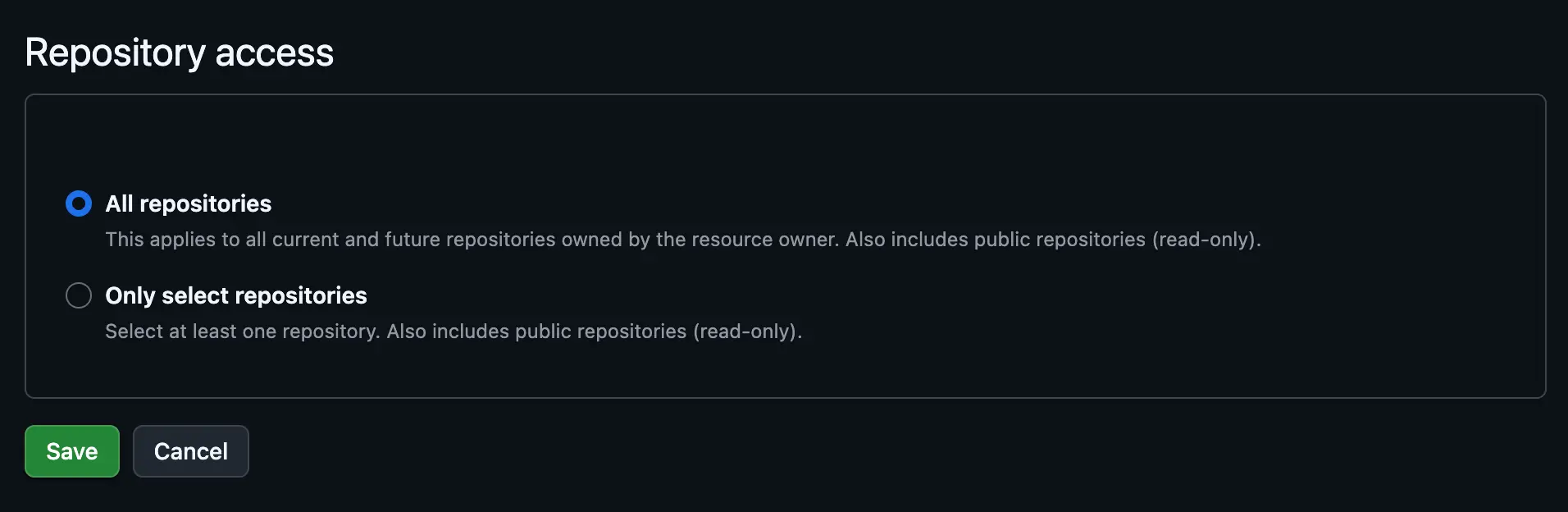
Scroll down to the Repository access section on GitHub's settings page.
If the Save button is disabled (grayed out), switch from "All repositories" to "Only select repositories", then switch back to "All repositories".
Click the green Save button. Jamdesk will detect the change and continue the setup process.
Other common issues
Repository not showing up
If your repository doesn't appear in the list:
- Make sure the Jamdesk GitHub App has access to the repository
- Check that you're logged into the correct GitHub account
- Try refreshing the page
Popup blocked
If the GitHub popup doesn't open, your browser may have blocked it. Look for a popup blocker icon in your address bar and allow popups from Jamdesk.
Alternatively, use the "Enter ID manually" option in the dashboard.
Organization repositories
For organization repositories, an admin must approve the GitHub App installation. If you're not an admin, request that an organization admin install the Jamdesk app, then try connecting again.
Still need help?
If you're still having trouble after trying these steps, reach out to us at support@jamdesk.com with details about what you're seeing.