Custom Domain Only
Enable Custom Domain Only in Jamdesk to block direct subdomain access and serve your docs exclusively through your own domain.
Your documentation is hosted at YOUR_SLUG.jamdesk.app. The subdomain keeps answering after you connect a custom domain. Every page it serves includes a <link rel="canonical"> tag pointing at your domain. Search engines index your domain, never the subdomain.
Custom domain only turns the subdomain off for direct visitors. A plain hit on YOUR_SLUG.jamdesk.app returns a 404. Your docs are reachable only through your own domain.
This hides your subdomain. It is not a password. Anyone visiting through your domain still sees your docs. Control who can read them with password protection. You can turn on both.
Turning It On
Add and verify your domain in the dashboard. See Custom Domains. The toggle requires a domain with status Active.
If your domain is a plain CNAME pointed at Jamdesk (like docs.acme.com), skip this step. If you serve docs at yoursite.com/docs through a proxy, the proxy must identify itself on every request it forwards. See Proxy setups below.
Open your project's Settings in the dashboard. Expand the Custom Domain card and turn on Custom domain only. Jamdesk checks your live domain first. The toggle stays off until your setup passes. If the check fails, the message tells you what to fix.
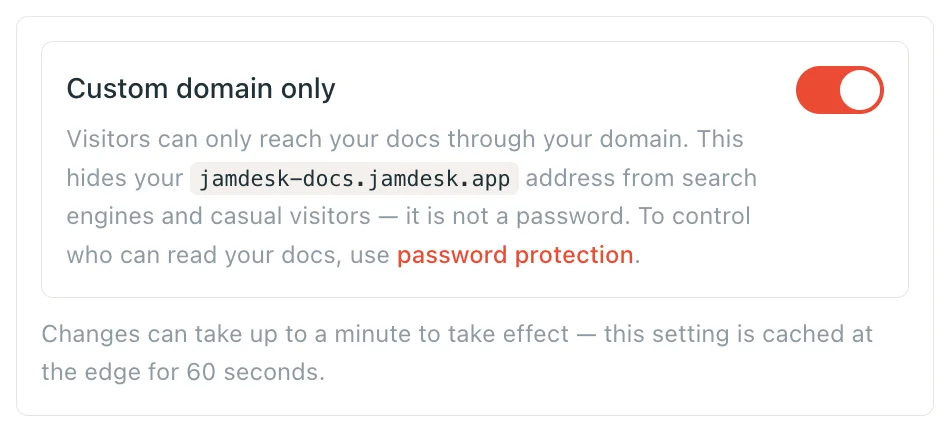
Changes reach every edge server within a minute.
Proxy Setups
Jamdesk serves a request to YOUR_SLUG.jamdesk.app only if it identifies itself as coming through your proxy. It needs the X-Jamdesk-Forwarded-Host header or the ?jd_proxy=1 query marker. These setup guides include the right one:
- Vercel:
vercel.jsonrewrites carry?jd_proxy=1. Edge Middleware sets the header. - Cloudflare Workers: the Worker sets the header.
- AWS CloudFront: the origin custom header.
- Reverse proxy: nginx, Apache, Caddy, and HAProxy set the header.
Using MCP or the chat widget through a reverse proxy? Forward /api/mcp/:path* and /api/chat/:path* the same way as /docs. On Vercel:
{
  "rewrites": [
    { "source": "/api/mcp/:path*", "destination": "https://YOUR_SLUG.jamdesk.app/api/mcp/:path*?jd_proxy=1" },
    { "source": "/api/chat/:path*", "destination": "https://YOUR_SLUG.jamdesk.app/api/chat/:path*?jd_proxy=1" }
  ]
}
MCP and chat need no changes on a domain CNAME'd to Jamdesk. Point MCP clients at https://docs.acme.com/_mcp.
Good to Know
- Everything 404s on the bare subdomain: pages,
sitemap.xml,robots.txt,llms.txt, and Markdown exports. Browsers see a Jamdesk not-found page. - Images stay reachable. Images, video, and social-preview (OG) images are exempt. The dashboard's site preview loads them directly from the subdomain.
- You can't lock yourself out. If your domain's DNS breaks, Jamdesk stops enforcing the block. The subdomain serves again until the domain recovers. If you break your own proxy config (say, by removing the marker from a rewrite), turn the toggle off while you fix it.
- The Search API is unaffected. It authenticates by API key.