Subpath Hosting
Host your docs at yoursite.com/docs, or any custom subpath on your own domain, with setups for Vercel, CloudFront, Cloudflare, and reverse proxies.
Host your docs at a subpath on your domain instead of a separate subdomain. The default is yoursite.com/docs, or pick a custom segment like yoursite.com/help. See Deployment Overview for every deployment option.
Why Use a Subpath?
A subpath keeps readers on your primary domain. Your documentation pages add to that domain's search authority. A subdomain like docs.yoursite.com splits ranking signals across two hosts.
How It Works
Your web server or CDN proxies requests from /docs/* to your Jamdesk site. The browser keeps the original URL:
The proxy passes the X-Jamdesk-Forwarded-Host header with your domain. Jamdesk uses this to:
- Verify your domain is authorized to serve the content
- Apply your configuration from the dashboard
Your proxy configuration is a one-time setup. Dashboard changes need no proxy update.
Setup by Provider
Prerequisites
Do these steps before you configure your proxy:
- Add your domain in your Jamdesk dashboard under Settings → Custom Domain
- Toggle "Host at a subpath" on
- Choose your subpath (optional; see Choosing Your Subpath below) and click Save
The dashboard shows your Jamdesk subdomain (e.g., acme.jamdesk.app). Your proxy configuration needs it.
Saving a change to subpath hosting triggers a full rebuild of your documentation. That includes turning it on or off and changing the subpath. The URL structure changes (for example, between /introduction and /docs/introduction).
Choosing Your Subpath
Your docs are served at /docs by default. Enter another value, like /help or /support, in the subpath field next to the toggle. A blank field shows the toggle as Host at a subpath (e.g. /docs). Type a value and the label changes to the path you are about to enable (Host at /help, and so on).
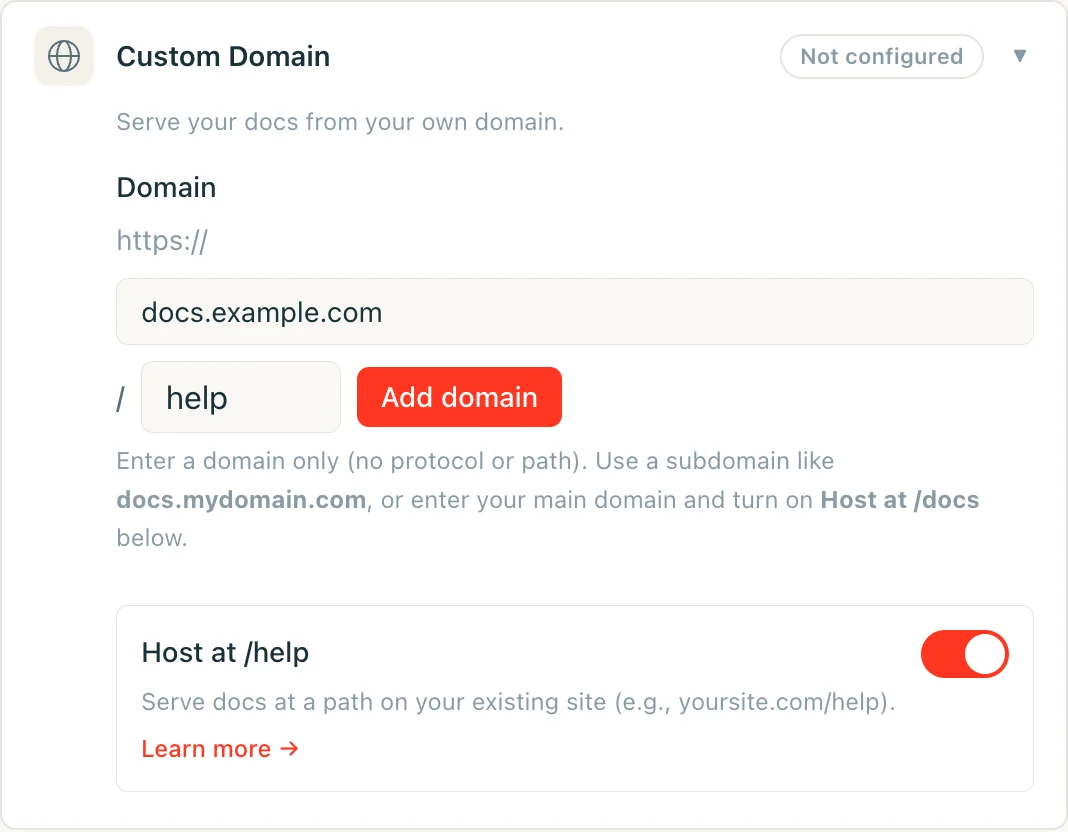
The field accepts one lowercase segment: letters, digits, and inner hyphens only, no leading or trailing hyphen, 63 characters maximum. Jamdesk rejects reserved segments, including api, jd, common admin paths like wp-admin, and any locale code your docs might use (fr, es, de, and similar). Your subpath can never collide with a route Jamdesk already serves.
Leave the field blank to keep the default /docs.
Renaming or Removing Your Subpath
Changing or clearing your subpath does not break links that are already indexed or bookmarked:
/docsnever stops serving. The original/docs/*paths keep responding after you switch to a custom subpath like/help. They respond on your[slug].jamdesk.appsubdomain and through any proxy still pointed at them. Canonical links move to your new subpath immediately. Search engines re-index there. Update your proxy configuration at your own pace.- Renaming a custom subpath forwards the old one, for one rename. Rename
/helpto/guide, and requests to/help/*308-redirect to the matching/guide/*path. This history is one level deep. Rename again from/guideto/support, and/guide/*redirects to/support/*. Jamdesk no longer tracks/help/*(the segment from two renames ago). Those links land on a "not found" page, sometimes after a redirect to an odd-looking combined path. Don't chain renames if you rely on the redirect to carry old links forward. Update external links to the current subpath instead. - Rolling back to
/docsredirects your previous custom subpath (one level of history) to/docs/*.
/docs does not redirect to the subpath you choose. /docs keeps serving directly, permanently. The one-level redirect applies only to a custom subpath you're moving away from.
Test your proxy by visiting https://yoursite.com/docs (or your configured subpath). Check that assets and links load.
Do I need to hide the jamdesk.app subdomain?
No. Your [slug].jamdesk.app subdomain stays reachable. It is the upstream
origin your proxy forwards to. It won't compete with your site in search
results:
- Domain registered: pages served from the subdomain include a canonical link pointing at the same page on your domain. Search engines credit your domain with the ranking signals.
- No domain registered yet: subpath-mode subdomain pages are marked
noindex. They never enter the index.
To block the content on the subdomain too (not only unindex it), enable Password Protection. The subdomain then serves an unlock screen instead of your docs.