
Team Members
Invite colleagues to your Jamdesk project as Owners or Members, manage roles, and remove access, with step-by-step instructions for team setup.
Invite colleagues to monitor builds, review analytics, and trigger rebuilds. Roles are Owner and Member.
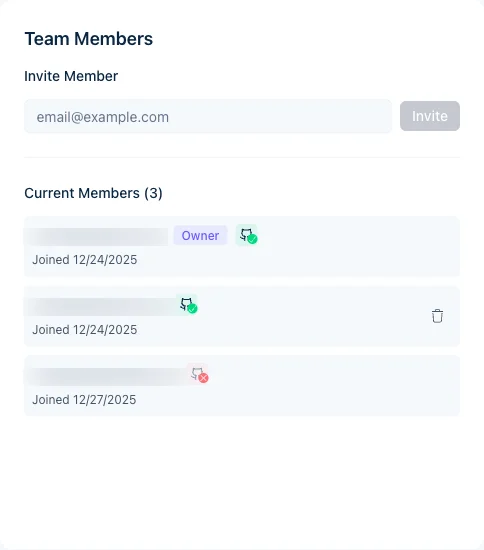
Membership also decides whose GitHub pushes build. Jamdesk matches the person who pushed by their linked GitHub account or by their email. A push from a non-member fails the build. The project owner gets an email. Invite the pusher with their commit email. They must sign in to Jamdesk with that email to accept. If they're already a member, they can link their GitHub account instead.
Inviting Members
Go to your project and click Settings.
Navigate to the Members tab.
Type the email address in the Invite Member field.
Click Invite. They'll receive an email with a link to join.
Invitees need a Jamdesk account. The invitation prompts them to create one if they have none.
If your account has Single Sign-On set up, teammates whose email matches your verified domain sign in through your identity provider instead of creating a password. The invite form flags when an address will use SSO.
Member Roles
| Role | Permissions |
|---|---|
| Owner | Full access, can remove members, transfer ownership, delete project |
| Member | View builds and analytics, trigger rebuilds |
Click Transfer Ownership next to a member's name to make them the owner. See Ownership Transfer for details.
To give someone control of billing and every project you own, make them an account admin. Account admins show in the Members list with an Account admin chip, and you remove them from User Settings instead of here.
Team members are not the same as docs-site readers. Team members see builds and analytics in the Jamdesk dashboard. Access Control sets who can read your published docs site: public, password-gated, mixed, or SSO. On a password-protected site you can also let your team sign in with Jamdesk, so members skip the shared password.
Removing Members
Only the project owner can remove team members:
- Go to Settings → Members
- Find the member
- Click Remove
- Confirm the removal
Removed members lose access immediately. You can re-invite them later.
Pending Invitations
Invitations that haven't been accepted yet appear in the Members list, marked as pending. Cancel one with the trash icon next to it.
Pending invitations don't expire. They stay valid until the person accepts or you cancel them.
Team size
Team members are unlimited on every project, at no extra charge.